Operating RX-PAD
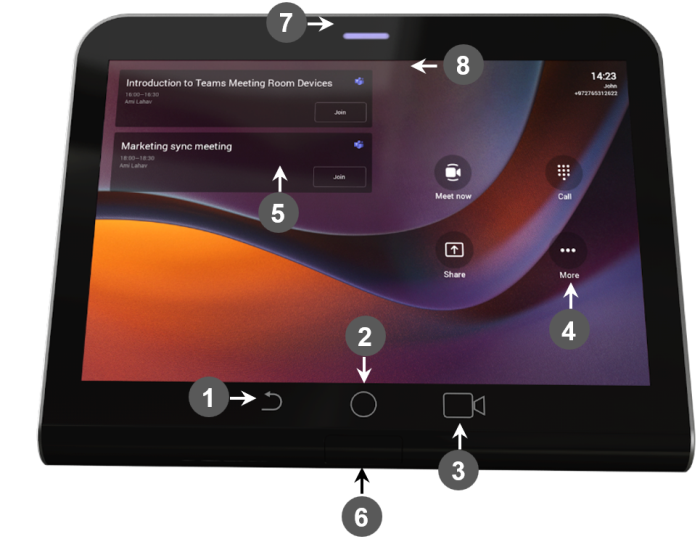
The following summarizes how to operate your RX-PAD.
|
L-R |
Description |
|||||||||
|---|---|---|---|---|---|---|---|---|---|---|
|
1 |
Touch the back button to return to the previous screen. |
|||||||||
|
2 |
Touch to return to the home screen or long-press to open the Device Settings page. |
|||||||||
|
3 |
Touch to access the MTR’s Camera Settings page. |
|||||||||
|
4 |
Touch to open Microsoft Teams and the Device Settings menu. |
|||||||||
|
5 |
Click to join a scheduled meeting. |
|||||||||
|
6 |
Passive Infrared (PIR) motion sensor (hidden). When sensing motion, it wakes up RX-PAD from screensaver mode, automatically lighting up the screen to greet the user. |
|||||||||
|
7 |
LED:
|
|||||||||
|
8 |
Drop-down menu to make it easy to open the RX-PAD application launcher. The new launcher enables accessing an app with a single click. |